
SVG vs PNG for Cricut: Which File Should You Use?
If a download contains both SVG and PNG files, you do not need to use both. Choose the file that supports the result you want: separate shapes cut from material, or a printed illustration with a cut outline.
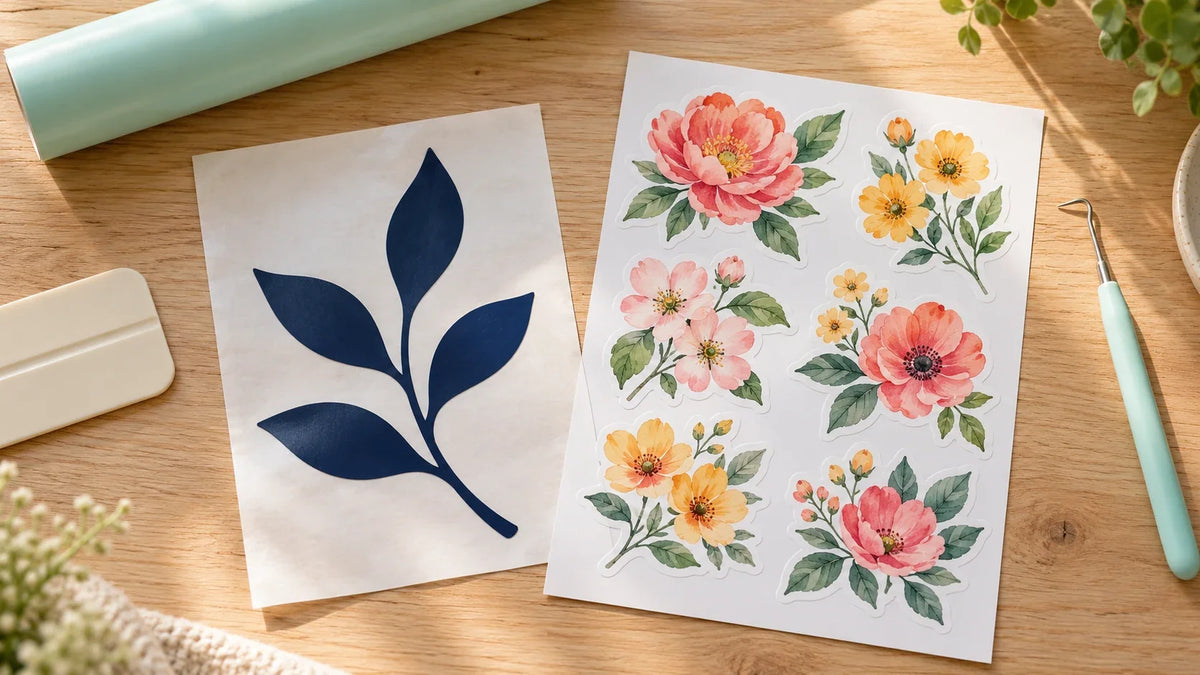
Start with SVG for a design supplied as cut shapes or layers. Start with PNG for a full-color raster illustration intended for printing. That is a useful starting point, not an absolute rule. Design Space can process raster images into cut shapes, and vector artwork can be used in a printed project. The design and chosen operation still matter.
What is the practical difference?
An SVG describes vector shapes and paths. A PNG stores a raster image made of pixels and can include transparency. In its upload instructions, Cricut distinguishes basic raster images from vector files and explains that supported layered SVG designs import with their layers.
For a crafter, the useful distinction is what information you need to keep. Separate shapes are helpful when cutting different colors of vinyl or cardstock. A pixel-based illustration is useful when you want its painted detail, shading, or color transitions to print as an image.
| Project goal | Likely starting point | Check before making |
|---|---|---|
| One-color vinyl name decal | SVG cut design | Readable strokes and finished size |
| Layered cardstock decoration | Layered SVG | Separate pieces and assembly order |
| Full-color illustrated sticker | Suitable PNG | Image quality, background, print-and-cut setup |
| Simple silhouette supplied only as PNG | PNG with careful cut-shape preview | Clean edges and intended outline |
Choose SVG when separate cut pieces are the point
Imagine a two-color flower made from adhesive vinyl. You need distinct shapes that can be cut from separate colors and assembled. A properly prepared SVG can retain that structure instead of asking you to reconstruct it from a flattened picture.
Inspect the imported layers rather than assuming every SVG contains several useful layers. Some designs are intentionally single-color. Others may contain details that become impractical when reduced. A vector file can scale mathematically without becoming pixelated, but your material and blade still have physical limits.
A thin flourish that looks elegant on a large sign may be too delicate on a tiny keychain. Resize to the actual blank and inspect the smallest pieces. “Vector” does not mean “every size will weed easily.”
Choose PNG when you want to preserve an illustration
A watercolor-style flower or shaded character contains visual information that is not the same thing as a set of colored vinyl layers. If you want that appearance on a sticker, a suitable PNG may be the more direct starting point.
Check the original file at the intended print size. Enlarging a small image does not create missing detail. Avoid using a listing thumbnail or screenshot in place of the supplied artwork, even if both look similar at a glance.
Also inspect the background. The PNG specification supports transparency, but a PNG can still be fully opaque. A white viewing window does not prove the file contains a white rectangle; test it over a contrasting background in trusted software before editing away intended white details.
Print Then Cut needs more than a PNG
Print Then Cut uses a compatible home printer to print the artwork, followed by a supported Cricut machine to cut it. Check your exact model and printer setup in Cricut's Print Then Cut instructions before purchasing materials. Not every machine or setup supports the same workflow.
The PNG does not determine the finished cut boundary by itself. Review the chosen upload type, operation, and preview. Make sure the result matches the intended project: a printed illustration with an outside cut is different from a single-color silhouette.
Keep the print and cut stages within the supported workflow. Do not assume that a separately printed screenshot or arbitrarily resized page will match the cut job. Make one complete sample before using a full pack of printable material.
Can you use a PNG for a basic cut?
Yes, a simple raster image can be processed into a cut shape. Cricut's upload workflow offers editing and preview choices for basic images. That can be useful for a clear silhouette, but it is not equivalent to recovering the original vector layers from a complex illustration.
Preview the shape carefully. Check holes inside letters, small isolated pieces, and the outside boundary. If the preview is a rectangle when you expected a flower outline, stop and investigate the background or upload choices before cutting.
Can you print an SVG?
An SVG is not restricted to cut-only projects. Depending on how you prepare the design and choose its operation, vector artwork can be part of a printed composition. The important question is whether you need its parts to remain separate or want a combined printed result.
Keep an editable copy before making changes that combine parts for printing. That gives you a way back if you later want the same artwork as separate cut colors.
A five-question decision before you upload
- Am I cutting colored material, printing an illustration, or combining both?
- Do I need separate design pieces?
- Is this the original supplied file rather than a preview?
- Does the artwork still make sense at the final size?
- Does my machine and material setup support the intended workflow?
If the files are still inside your download folder, our digital-file access guide can help you locate them. Then choose a manageable idea from our beginner project collection and check the design's usage terms before making items for sale.
Choose by the finished result, not by which extension sounds more professional. The best file is the one that preserves the information your project actually needs.

Save This Guide for Later
Keep this guide handy for your next creative afternoon. Copy the link to save or share it.
No email needed. Save the link in your notes or bookmarks.


Comments & Reviews
Be the first to share your thoughts.