
Why Is My Printable Vinyl Smudging? Causes and Fixes
Printable vinyl can smear because the sheet is incompatible with the printer, the wrong side received the ink, the print settings are unsuitable, the surface was handled too soon, or the printer is marking the sheet. Start by noting when the smear appears. A print that exits already scuffed needs a different investigation from one that looks clean until you touch or wet it.
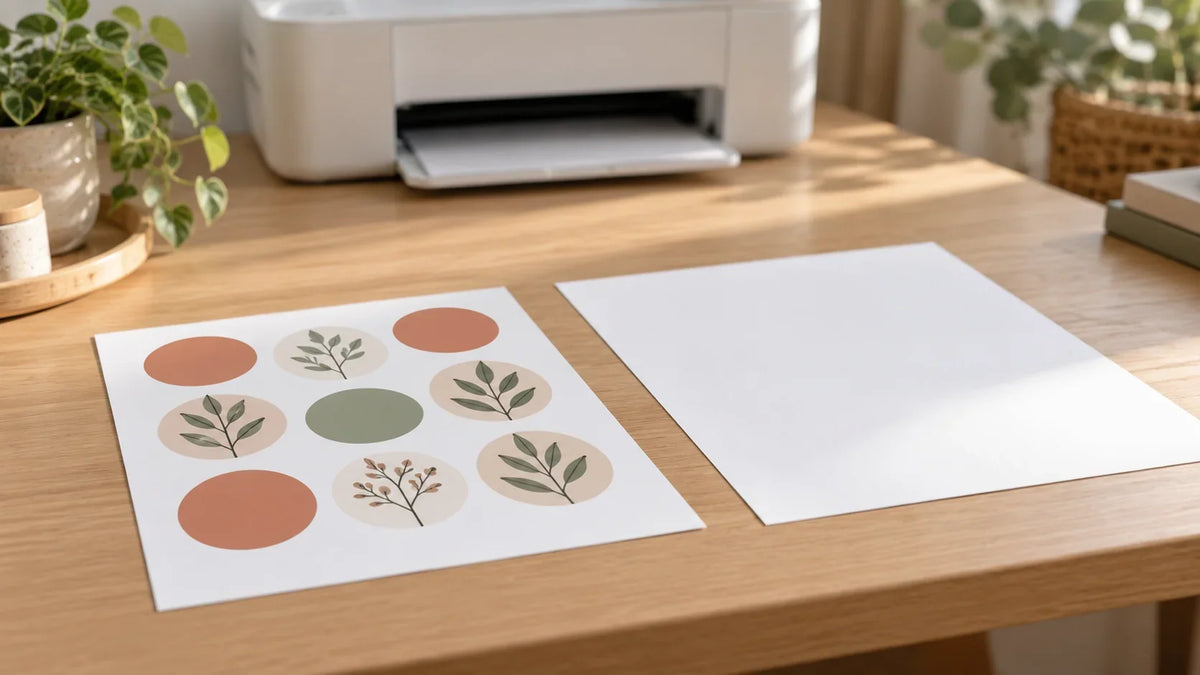
Pause the batch. Keep the failed sheet and its packaging, and use a small test design for the next attempt. Changing the paper setting, ink, artwork, and drying time together makes it harder to identify what helped.
Match the symptom to the first check
| What you see | Check first |
|---|---|
| Ink beads or wipes away across the print | Printer compatibility and the printable face |
| Dark areas stay tacky or smear | Material-specific media and quality settings |
| A repeated streak or scuffed edge appears before handling | Loading, sheet flatness, and the model’s paper-path guidance |
| A clean print smears under your hand or cutter | Required drying time and handling |
| The dry sticker runs only after getting wet | The finished print’s water-use rating—not just whether the base is vinyl |
1. Confirm that the material is printable in your printer
Read the exact product label. “Vinyl” alone does not mean inkjet-printable, and an adhesive sheet intended for a cutting machine is not automatically printer media. Find the manufacturer’s printing instructions for the specific material you bought.
Do not use laser-only labels as an inkjet substitute. Avery explains that laser and inkjet products are designed for their respective printing processes; the wrong combination can produce poor results. A package explicitly marked for both is different from one that merely looks similar.
Write down the full material name and product number. If you discarded the package, check the order record or ask the supplier before experimenting. A mystery leftover sheet is a poor starting point for troubleshooting.
2. Check the printable side and the loading direction
The liner protects the adhesive; it is not the surface you meant to print. Identify the face using the maker’s instructions, not a rule such as “the shinier side is always right.” Product versions can differ.
If the printer’s feed orientation is uncertain, use ordinary paper to establish which face receives ink before risking another adhesive sheet. Then compare the failed sheet with an unused one. Printing on the backing is a setup problem, not evidence that the ink itself is defective.
Cricut’s Printable Vinyl instructions illustrate why exact identification matters: the company distinguishes current and older liners, including an older clear product. Follow the instructions that match the version in your hands.
3. Return to the material’s recommended print settings
Open the full print preferences and record the paper size, media type, and quality level. Do not assume selecting the highest quality is a universal cure for smearing.
For its own Printable Vinyl, Cricut suggests high-quality or photo settings initially, but recommends lowering quality to “good” if smudging appears because too much ink may be applied. Treat that as guidance for that material—not a command to lower quality on every printer and paper.
Make a small test with a dark block, a midtone color, fine lines, and a short word. Print it using the manufacturer-recommended baseline. If the instructions support a second setting, change just that setting for the next test and label the result on the backing. You are looking for a clean, usable print, not simply the most saturated one.
4. Separate drying problems from printer marks
Inspect the sheet without touching the printed area as it exits. If it is clean at that point, let it rest according to the material instructions before cutting, stacking, or laminating. Do not use a fixed drying time copied from a different brand.
If marks are already there, waiting longer will not remove them. Check whether the sheet is curled, loaded incorrectly, or outside the printer’s supported media specifications. Repeatedly feeding a material that drags or jams is not a useful test.
For example, the Epson L8050-series smearing guide identifies paper loading, a dirty paper path, curl, and print-head contact with thick media as possible causes. Its thick-paper setting is model-specific. Look up your own model before changing clearance settings or carrying out cleaning.
Do not reach inside a moving printer, apply household solvents, or improvise a cleaning procedure. Use the manufacturer’s maintenance instructions. If ordinary supported paper is also marked, include that result when contacting printer support.
5. Investigate smearing that appears during finishing
Check the print before each stage: after drying, after cutting, and after applying any manufacturer-approved protective layer. This simple sequence tells you where a previously clean sheet changed.
Handle the sheet by its edges where possible. Do not rub the image repeatedly to “prove” it is dry, and do not cover a visibly wet or already damaged print with laminate. If a tool or handling step introduces the mark, repeating the original print settings may not address the cause.
Also avoid treating printable vinyl like cut-colored vinyl. Cricut specifically advises against transfer tape on its Printable Vinyl because it can remove the printable coating. That warning belongs to that product; check other materials’ application instructions rather than assuming a familiar vinyl workflow transfers unchanged.
6. If water causes the smear, revisit the intended use
A dry indoor print and a sticker intended for washing are different projects. The word “vinyl” does not establish how your ink behaves around water.
Avery’s material guidance gives a useful example: its Durable White Film has different water-resistance claims depending on the printing process and ink type. That is why a sheet’s material name is not enough to promise a waterproof finished sticker.
For a wet-use project, verify the manufacturer’s complete system, including any required protective layer and care restrictions. Do not use a successful splash test to advertise dishwasher safety, outdoor longevity, or food-contact suitability.
Keep a short troubleshooting record
- Printer: exact model and ink product.
- Material: brand, product number, and finish.
- Settings: media type and quality.
- Timing: already marked on exit, after handling, or after water exposure.
- Change: the one variable adjusted for the next print.
- Result: improved, unchanged, or worse.
If the sheet does not smear but the image itself looks blurry, confirm that you used the original design file rather than a preview image. Our download and extraction guide helps locate the supplied files. That is a different problem from ink physically spreading on the material.
Stop troubleshooting when a small sample prints and finishes cleanly for its intended use. Save those settings before returning to the full batch. If no supported combination works, send the record and a clear photo of the defect to the material or printer manufacturer instead of using more sheets on uncontrolled guesses.

Save This Guide for Later
Keep this guide handy for your next creative afternoon. Copy the link to save or share it.
No email needed. Save the link in your notes or bookmarks.


Comments & Reviews
Be the first to share your thoughts.