
Craft ideas & projects
SVG, DXF, EPS, and PNG: A Simple Guide to Craft File Formats
A practical guide to opening and moving craft files between applications without confusing compatibility, cut paths, pixels, and usage permission.
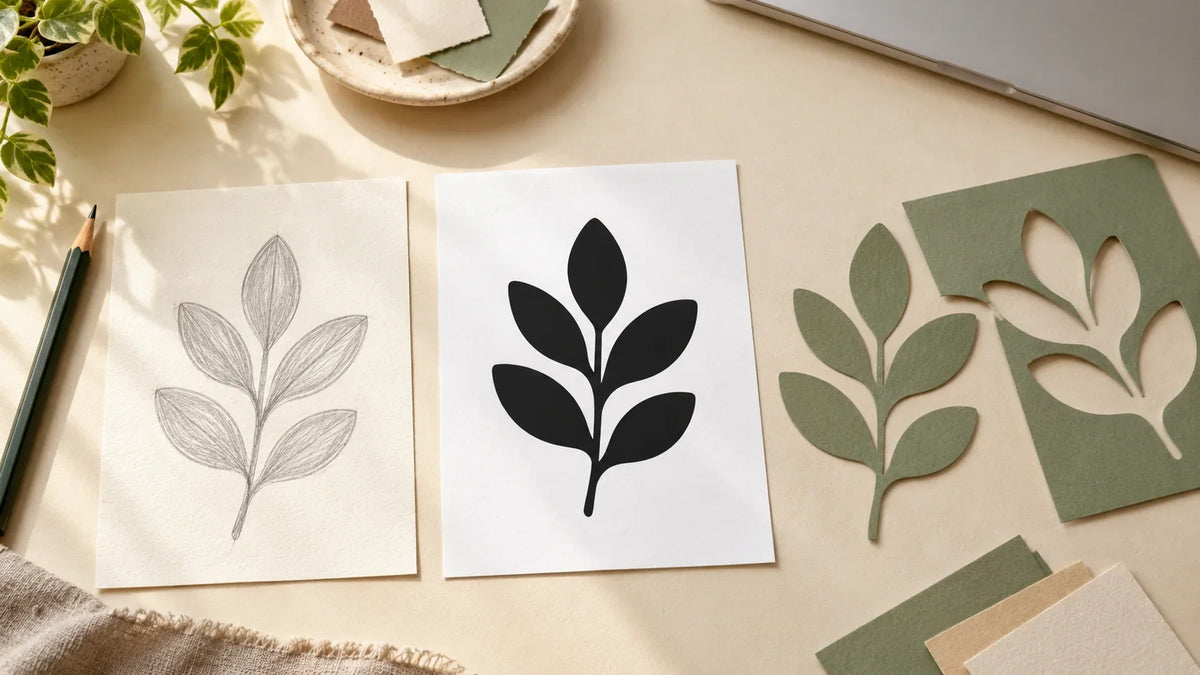
You unzip a design download and find four files with the same name. Which one belongs in your software, which one is for printing, and why does one open as a picture instead of editable shapes?
Choose a file by the information your next step needs, then check whether your software edition can open it. SVG often carries useful cut paths, DXF can provide a compatible drawing for certain workflows, EPS serves supported design and print applications, and PNG is a pixel-based image. None of those extensions guarantees that a particular file is ready for your exact project.
This guide is about moving a design from a download folder into the right application without losing something important. For the narrower question of cutting versus Print Then Cut in Design Space, use our SVG vs PNG for Cricut guide.
A four-file comparison you can use before opening anything
| Format | Useful starting point | Check before relying on it |
|---|---|---|
| SVG | Scalable artwork and paths for compatible design or cutting software | Are the needed shapes actually paths? Does the app support the file's features? |
| DXF | Drawing geometry for a compatible importer, including Silhouette Studio Basic | Finished dimensions, placement, and the imported shapes |
| EPS | Artwork exchange with an application or print provider that requests EPS | Application support and whether the content is editable vector artwork |
| PNG | Full-color artwork for a supported printing or image workflow | Pixel dimensions, transparency, print size, and any separate cut outline |
SVG: useful paths, but not a promise of cut-ready artwork
SVG is a flexible graphics format. A supplied cut-file SVG can contain the separate shapes you need for a vinyl decal or layered paper project. That is different from taking a picture and simply giving it an SVG extension.
An SVG can also include an embedded raster image. The SVG image-element documentation explains that SVG can display image files inside the document. So “it opens as SVG” is not enough: select the artwork in a compatible editor and inspect what you can actually edit.
Before cutting, check the paths and the finished size. A decorative effect, tiny detail, or complex shape may look attractive in a preview but need a different production method. A good file choice is the beginning of the check, not the end.
DXF: a compatibility option that deserves a size check
DXF is often included when a design needs to reach a drawing or cutting application that accepts it. For example, Silhouette Studio Basic can open DXF, while opening SVG requires a higher edition.
Do not assume the imported result will match the original application's dimensions or organization. Silhouette's import troubleshooting guidance describes DXF feature limitations and warns about sizing during import. Compare the dimensions with the creator's intended size or your project measurements before sending a cut.
A practical example: if your design must fit a 3-inch-wide label area, measure that space and set the intended width after import. Keep proportions linked where appropriate. Do not send the job merely because it fits somewhere on the software's page.
EPS: use it when the receiving workflow supports it
EPS is common in established design and print workflows, but it is not a universal craft-machine format. An application may support opening EPS, placing it in a document, or exporting it in different ways. Adobe's Illustrator format reference separates these operations.
If a print provider asks for EPS, confirm the required specifications with that provider. If your cutting software does not list EPS as a supported import, use a supported file supplied with the design rather than expecting the extension to work everywhere.
Also inspect the actual content. Adobe notes that EPS can contain bitmap data as well as vector elements. Saving an image in another container does not automatically create clean cutting paths or restore detail missing from the original picture.
PNG: keep an eye on pixels and the intended print size
PNG stores a raster image and can support transparency. The PNG specification defines it as a lossless raster format. “Lossless” describes how the image data is stored; it does not mean the image can be enlarged indefinitely without changing its appearance.
For a printed graphic, check the pixel dimensions and the size at which you intend to use it. As a planning example, a 1,200-pixel-wide image placed at 4 inches gives 300 pixels per inch. That arithmetic does not guarantee a good print: the source quality, printer, material, and required output specifications still matter.
Transparency is also a capability, not a guarantee. Some PNGs have white backgrounds. A checkerboard baked into an image is not transparency. Inspect the actual file against a contrasting background before building a print layout around it.
Software editions can matter as much as the file type
Check the edition you have, not just the application's name. According to Silhouette's current file-type reference, Studio Basic opens DXF and imports PNG for image-based work; Designer Edition adds SVG import; Business Edition adds EPS import. Importing a PNG does not turn all its visible details into vector paths.
Opening and exporting are separate capabilities. The same reference lists STUDIO3 saving across editions, with additional SVG, PDF, PNG, and JPG export in Business Edition. Before paying for anything, compare your actual task with the official feature list. You may already have a suitable format in the download.
A safer way to move files between applications
- Keep the original download. Work on a copy and leave the supplied folder intact.
- Write down the destination. Name the application, edition, and intended result: cutting, printing, or editing.
- Choose a supplied compatible format. Try that before creating extra conversions.
- Inspect the import. Compare dimensions, shapes, colors, and any text with the original preview.
- Check the output. Look at the actual cut paths or print preview, not just the canvas.
- Save a separate working copy. Use a name that identifies the project and software so it is not mistaken for the source.
The Inkscape export guide recommends keeping an Inkscape SVG original and using Save a Copy for other formats. The broader habit is useful even if you use a different editor: keep an editable original before creating a delivery version.
Conversion cannot fix every problem
Renaming “design.png” to “design.svg” is not conversion. Tracing a raster image may create paths, but the result needs inspection and cleanup. Exporting a vector design as PNG creates pixels; it does not preserve the same path-editing workflow inside that PNG.
Format conversion also does not grant new permission to use or redistribute the artwork. Read the license supplied by its creator and keep it with the files. If you are unsure whether a particular use is allowed, ask the rights holder rather than treating a technical workaround as permission.
If the immediate problem is finding your download rather than choosing a format, start with our digital-file access guide. Once the files are available, choose for the destination, inspect the result, and make a small proof before committing to a full project.


Comments & Reviews
Be the first to share your thoughts.